FTTC (up to 80Mb), FTTP (up to 1GB), Leased lines, VoIP from £6/ month, Security software, Office 365, Email etc.
When you need value for money and quality of service without the drama phone 028 8283 1111
Select a quick link > Control panel - Rise a ticket - Remote assistance
-
Bitdefender
-
Internet services
-
VoIP Low cost telecoms
-
-
- Redirect your number
- VoIP on your Desktop
- Allocate function keys
- VoIP audio quality help
- Lifts Regulations 2016
- Address book
- Inclusive calls
- Reset a Yealink phone
- Yealink basics
- Yealink advanced
- Yealink Busy Lamp Field
- Reset BLF State
- ZoiPer set up on Android
- Call waiting
- Outbound and inbound call issues
- Feature Dial Codes
- Port a number from Megganet
- Program voicemail button
- Show all articles ( 3 ) Collapse Articles
-
-
Email services
-
Phone lines and calls
-
Software
-
Fax numbers (Cloud)
-
Domians
-
IT Equipment
-
Backups
-
Identify connections
- Phone Colum on 02828831111 or 07788562087
-
Identify equipment
- Phone Colum on 02828831111 or 07788562087
-
Downloads
-
Glossary
- Phone Colum on 02828831111 or 07788562087
-
Documents
- Computer name
- Migrating Hosted Exchange to Microsoft Exchange
- How to email a screenshot
- Direct Debits explained
- Powerline
- Microsoft NCE
- Chose an email address
- UPS - Power protection
- Wireless Access Points (WAP's)
- SPAM
- Password policy
- Run book
- Wi-Fi reset internal adapter
- Seasonal greetings
- Reliability Monitor
- Standing Orders
- Windows updates
- Buying a printer
- Cease an internet service
- Windows 11 store
- Remote Support
- Omada controller
- Port open verification
- OpenVPN configuration
- VPN L2TP to an Enterprise TP-Link router
- Wireless (Wi-Fi) Repeater
- Teams installation
- Video conferenceing screen installations
- House networking
- Printer windows 10 view
- Laptop care
- OpenVPN explained
- Install Microsoft 365
- OpenVPN download and install
- TP-Link MR515
- Show all articles ( 20 ) Collapse Articles
-
Remote Support
-
Payments
-
Pricelist (Hardware)
-
Synology NAS
- What is a Synology NAS?
- Dive sync remote overview
- Synology Drive Sync Server - installation
- Drive Sync Client Installation
- Drive Backup - recovery
- Synology Active Backup for Windows
- PPTP VPN to a Synology NAS
- Synology Drive Sync end users notes
- Synology Hyper backup - recovery - local computer to external usb drive
MS Exchange on iOS (Mail app)
Setting up an MS Exchange email on an Apple iOS device using Apples Mail app.
There are quite a number of different iOS devices and versions of iOS so these instructions may vary from device to device. The outline structure should be roughly similar. We do not support iOS devices directly and are unable to set up email on your iOS device by remote desktop.
This has been updated for 2026. These instructions may not be valid for older devices and if you get stuck, I would recommend Googling the make and model of your phone and the type of email service. For example “How do I configure my Apple iPhone 15 to access microsoft Exchange Email”.
Pre requisites
Before you proceed you will need your email address and password. If you ever need to check your email credentials, browse to outlook.com and enter them. If you log on successfully, they are correct.
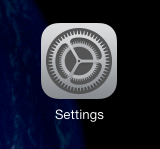
Step 1 – Select Settings as in the pic below.
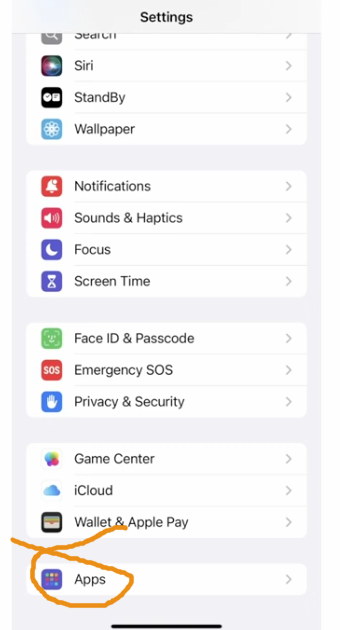
Select Apps from the Settings screen as in the pic below.
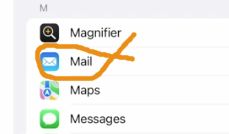
Select Mail as in the pic below.
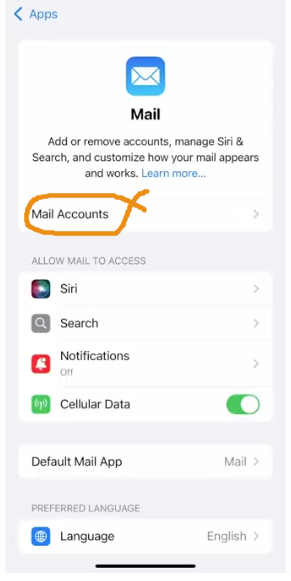
Select Mail Accounts as in the pic below.
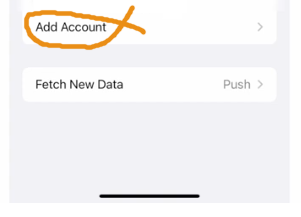
Select Add Account as in the pic below.
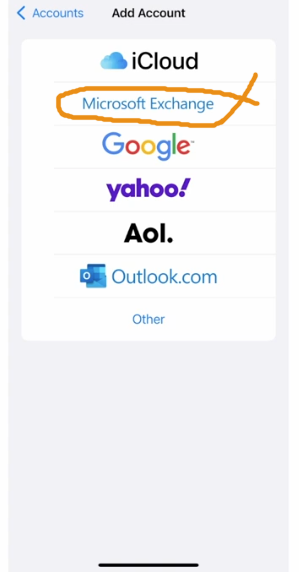
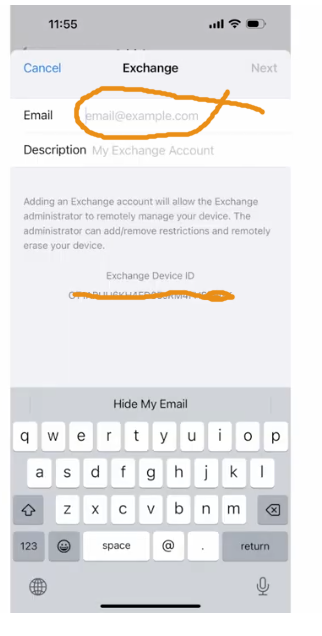
Enter your email address as in the pic below then select Next. You can type a description into the Description field but this is not essential.
Select Configure Manually as in the pic below.
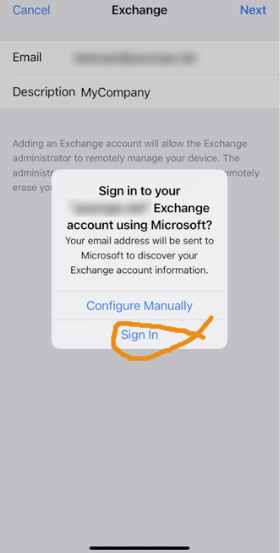
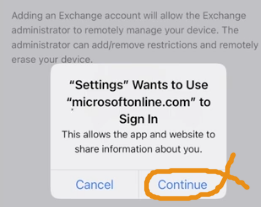
Select Continue as in the pic below.
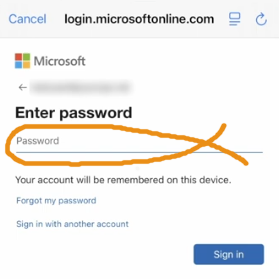
Enter your email address Password as in the pic below.
At this point you can choose to Save Password or one of the other options. I normally select Save Password but this is not essential.
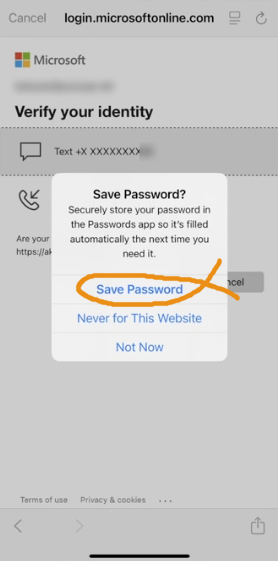
Once you have made your selection, you may or may not, have to go through a 2FA process. This should be straight forward and there is no need to go through the steps here.
Time to wrap up by selecting Save as in the pic below.
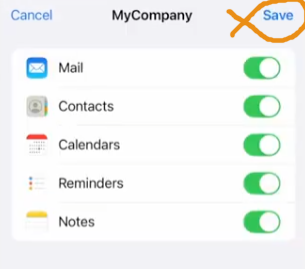
Save your settings and check your email.
These instructions are correct as of date of writing – 18/2/26 Please inform Megganet if Apple change their systems or if you have corrections to make, so we can keep this page up to date.