FTTC (up to 80Mb), FTTP (up to 1GB), Leased lines, VoIP from £6/ month, Security software, Office 365, Email etc.
When you need value for money and quality of service without the drama phone 028 8283 1111
Select a quick link > Control panel - Rise a ticket - Remote assistance
OpenVPN download and install
A VPN is used to connect remote users to an office network so they can open, edit and save documents. They can also copy documents from the server to their remote computer to work on.

Prerequisites
Please ensure the remote network you need access to is preferred for your connection.
- You will need have your OpenVPN configuration file. This should be given to you by the person who set up the OpenVPN on your internet router. The same OpenVPN configuration file can be used by all staff who need remote VPN access. The name of the configuration file will be in the form ‘VPN_Default_2026-01-19-00-09-27.ovpn’.
- The Office internet will need a static IP. You don’t need know what the IP is as it is embedded into the .ovpm configuration file.
- You will need the VPN username and password. This may be different from your computer username and password.
- You will also need to ensure the shared resources (specific shared folders on on your office Server, NAS, File server etc ) are available.
- If you are accessing your office servers shared folders, you will need the static IP of your server.
If the login username and password for your remote computer matches your login username and password for the server then you will have one authentication step less when you attempt to access the shared folders on your server.
Download OpenVPN
Click here to go to the OpenVPN web site. From there you can download the OpenVPN program.

Download the installer.
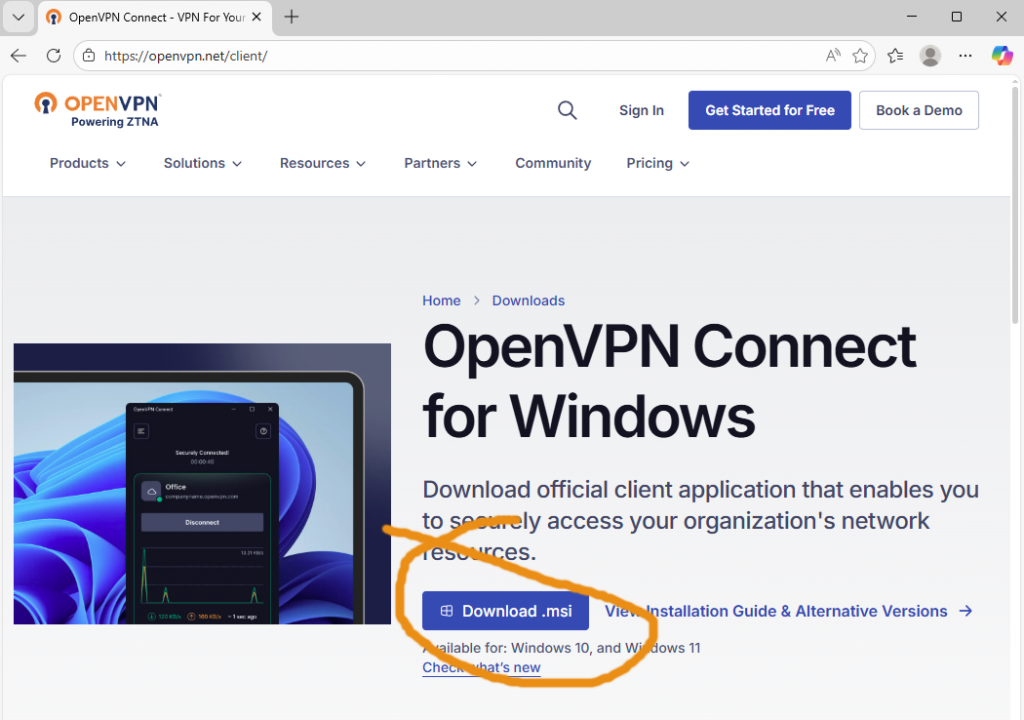
Either run the installer from the downloads drop down as below.
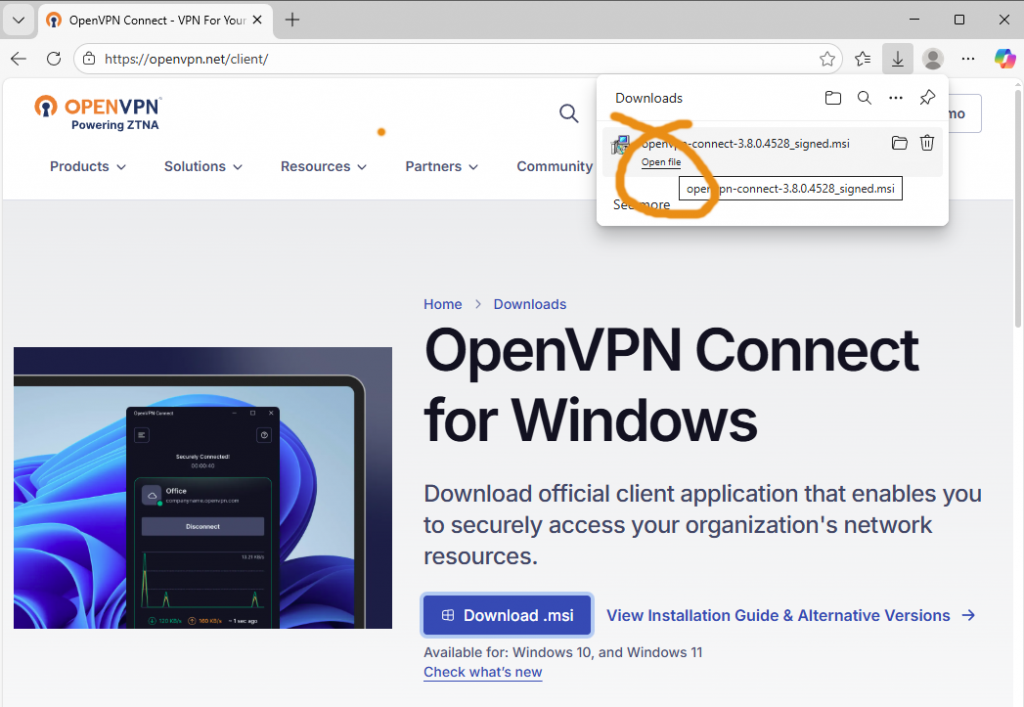
Or run the installer directly from your downloads folder as below.

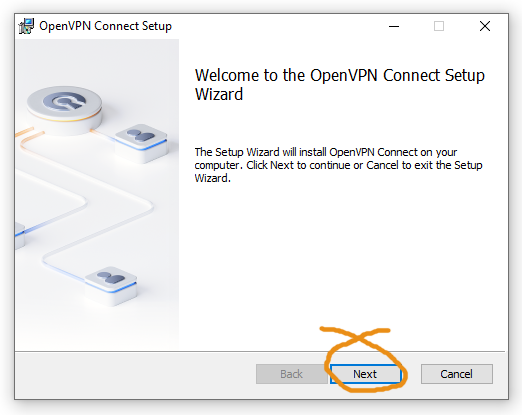
Select ‘Next‘ to continue as in the pic below.
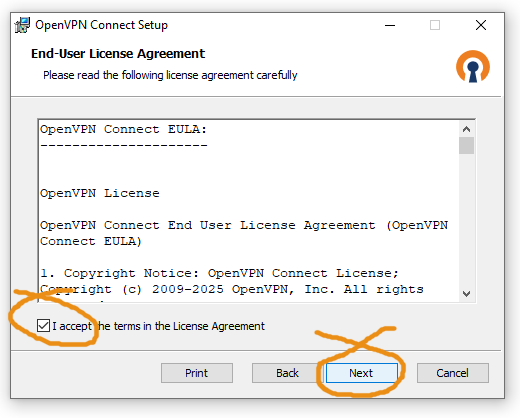
If you accept the ‘End-User Licence Agreement‘ then select ‘Next‘ as in the pic below.
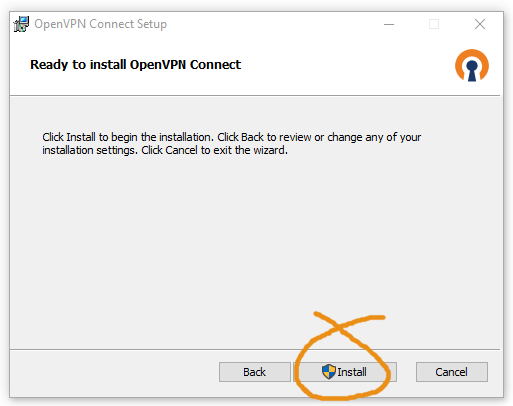
Select ‘Install‘ to start the installation process as in the pic below.
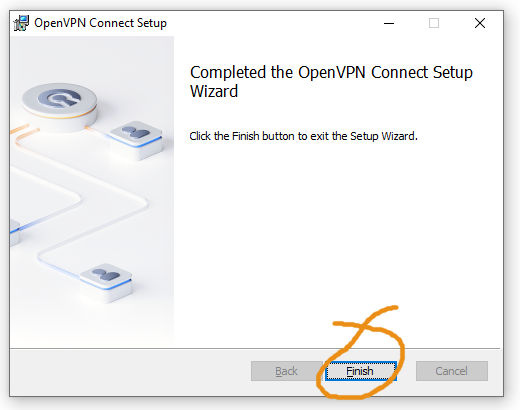
Select ‘Finish‘ to complete the installation as in the pic below.
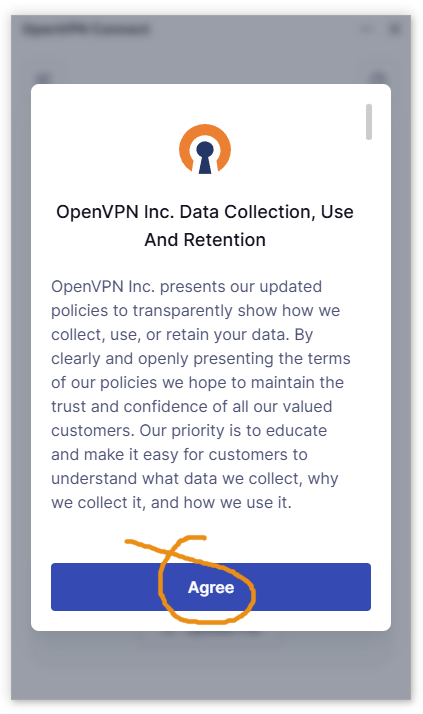
Next, select ‘Agree‘ to the terms as in the pic below.
Now we are ready to input the .ovpn configuration file.
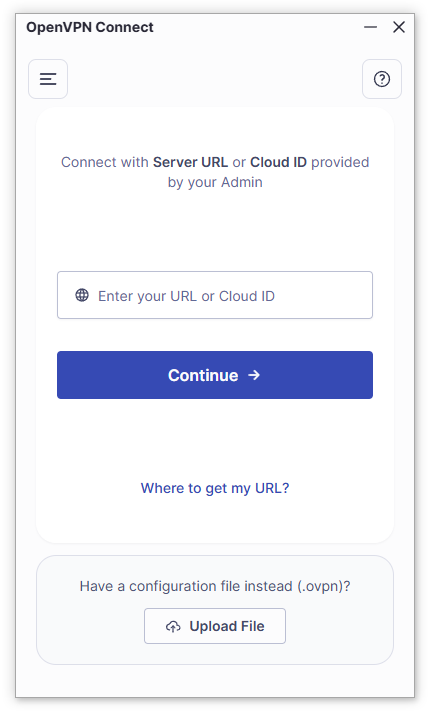
Open the folder you have stored the .ovpn configuration file. Drag your .opvn file into the ‘OpenVPN Connect’ window as in the 2 pics below.
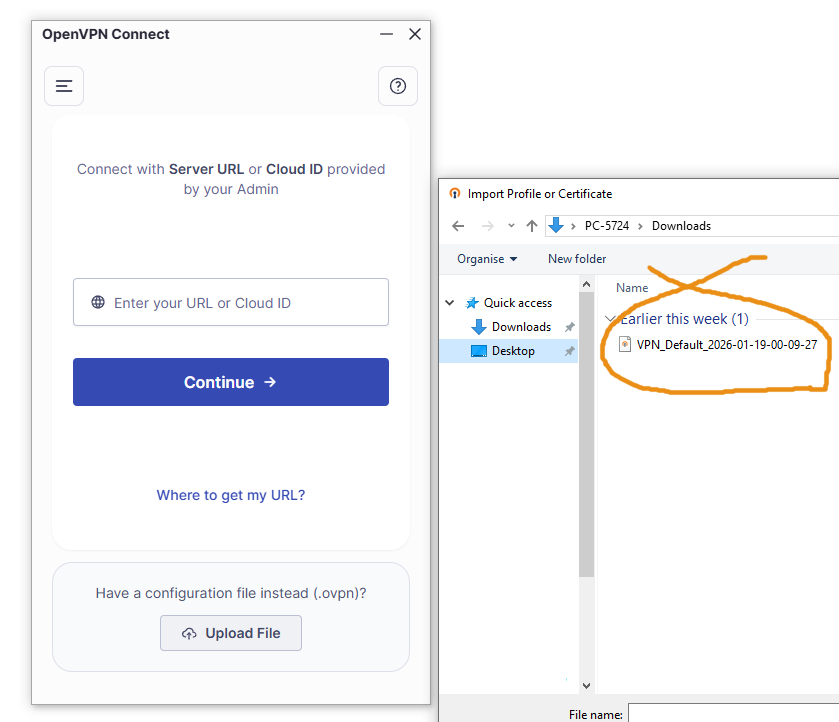
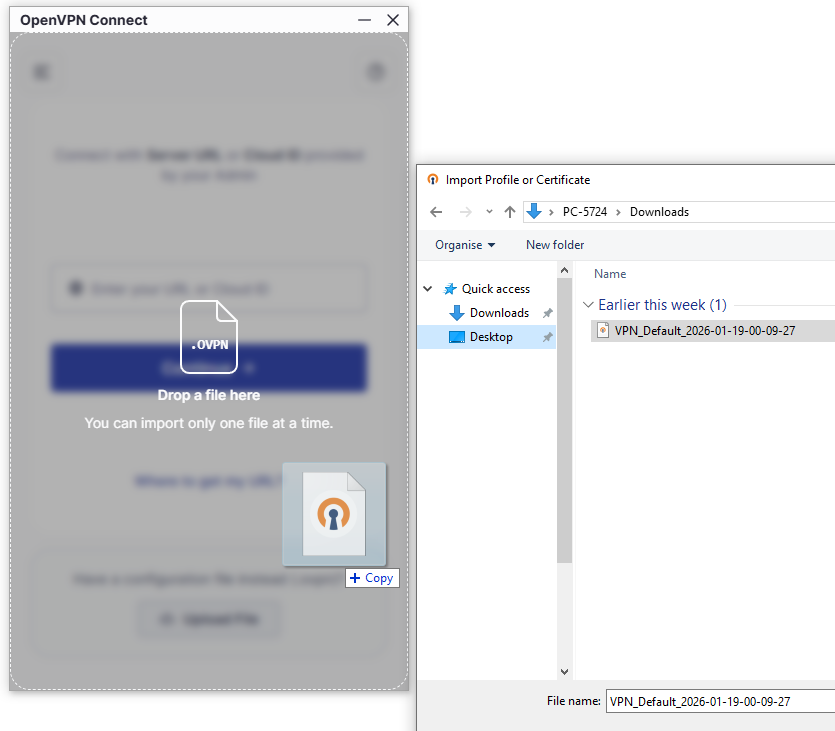
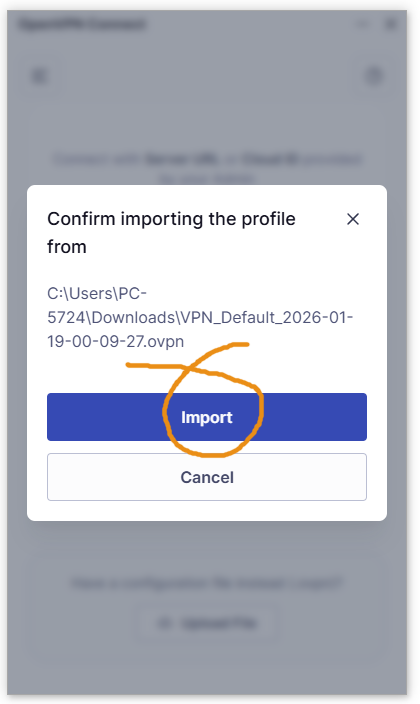
Select ‘Import‘ as in the pic below.
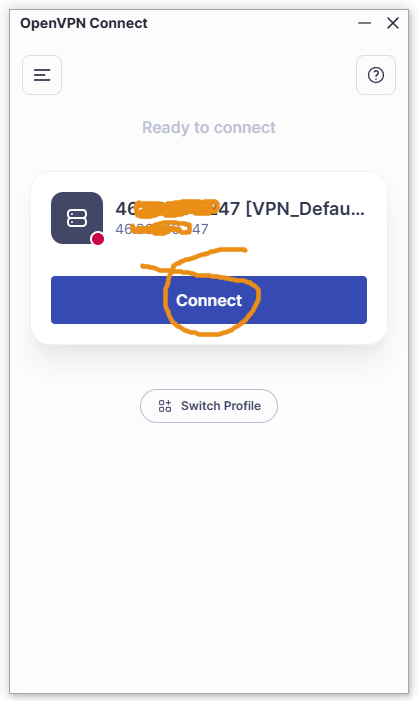
Your WAN IP is part of the configuration file. For this support page, out training site IP address has been blanked out for security. Select ‘Connect‘ to proceed.
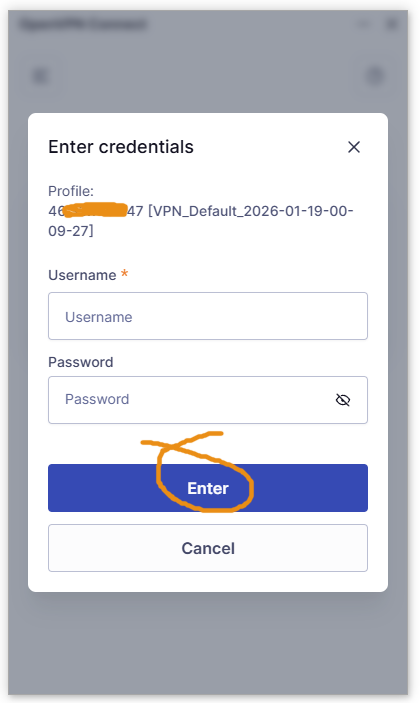
Once you get this far, you can enter your VPN username and password as in the pic below. This may or may not be your computer username and password. Select ‘Enter‘ to continue.
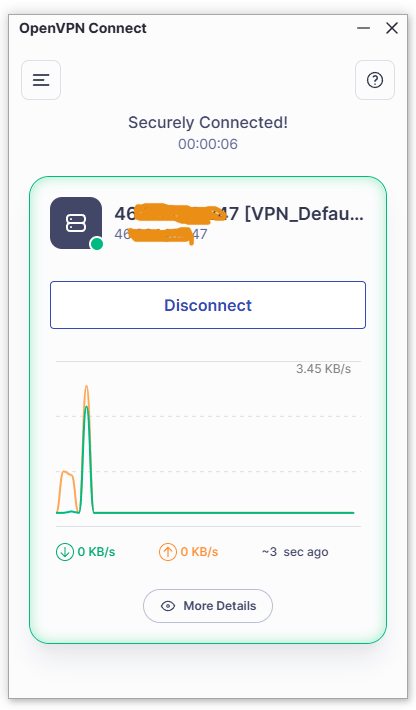
If you get the ‘Securely Connected!‘ window as below, you are now connected to your office network.
Running the OpenVPN program at a later date
Double click the OpenVPN icon on your desktop to start the VPN. You may need to re enter your VPN username and password each time. If you want, you can go to ‘Settings‘, ‘Profiles‘, and enter your VPN username and password and get OpenVPN to remember them.

If the Icon is not on your desktop then it will be in your list of programs.
Accessing your server
If you need access to folders on your server, you will need to make sure they are already shared for you. Your username and password grant you access to whatever folders you should have access to.
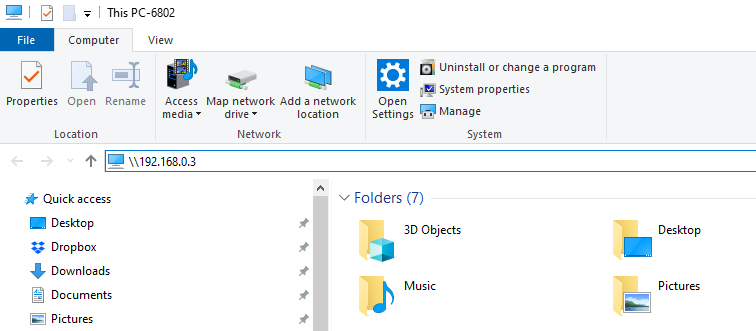
There are several ways to connect to your server. This is our preferred method. First, get the IP address of your server. Then run the File explorer and you should see the screen below. Enter 2 backslashes and the IP address of your server as in the pic below and press ‘Enter‘.
The list of shared folders should appear.
Double click the folder you need aces to and work away.
Alternately, you can map the appropriate folder to a drive letter to make future access a bit easier.
Caveat’s
Please note that the speed of the connection between your remote device and the server is the slowest speed of your local internet and the office internet. For example, if your remote internet speed is 20/2GB and the office internet speed is 1,000/110 then the max speed you will get is 20/2GB. It will typically be less.
If you are using Wi-Fi at the remote location, your speed will be lower than using a network cable connection. Also, the speed will change form time to time. To get round this issue (if it becomes a problem), you could copy the relevant document to your remote device and upload it when you are finished.
If you are using a Cellular internet, the speed and connection reliability need to be good for a stable connection.
It is very important that the Office WAN IP is static. If it changes, you will need to have a new .ovpn file created and installed on your remote computer.
If you are a Megganet client, we can can set up the OpenVPN for you by either scheduling a callout or using our remote access system. This is chargeable at our usual rates.