FTTC (up to 80Mb), FTTP (up to 1GB), Leased lines, VoIP from £6/ month, Security software, Office 365, Email etc.
When you need value for money and quality of service without the drama phone 028 8283 1111
Select a quick link > Control panel - Rise a ticket - Remote assistance
IONOS IMAP email setup
Pre-requisites
Before you start, please ensure you have your full email address and your email address password. These details are referred to as your email credentials.
Set up Outlook with IMAP email
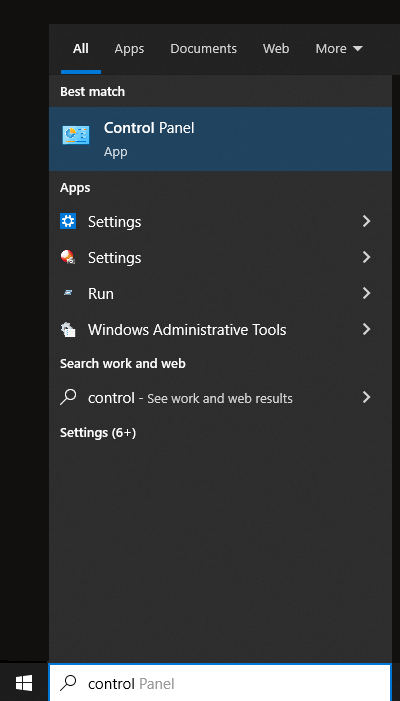
Click the right mouse button on the Windows button and type control. You should see a link to the Control Panel.
Once in the Control panel select Small Icons (Link at very top right of the window).
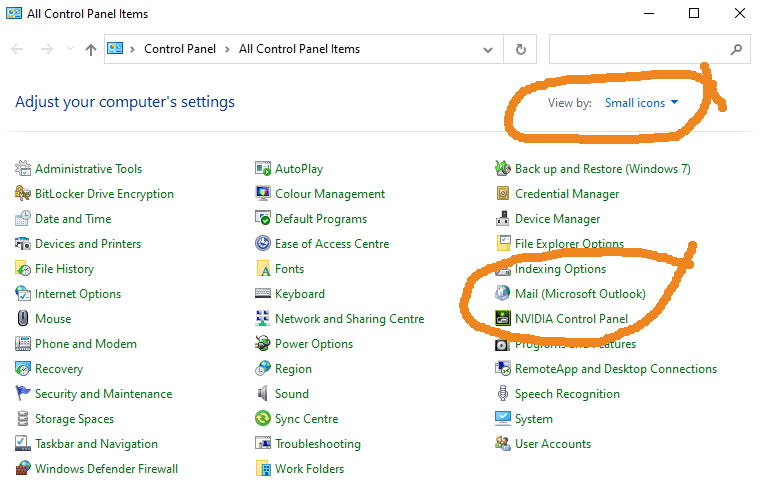
Select Mail (Microsoft Outlook). Note it may also say Mail (32 Bit) or something closely resembling this.
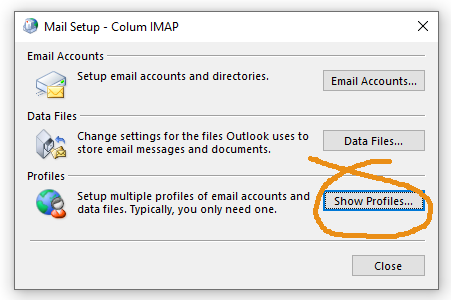
Select Show Profiles and select a new profile.
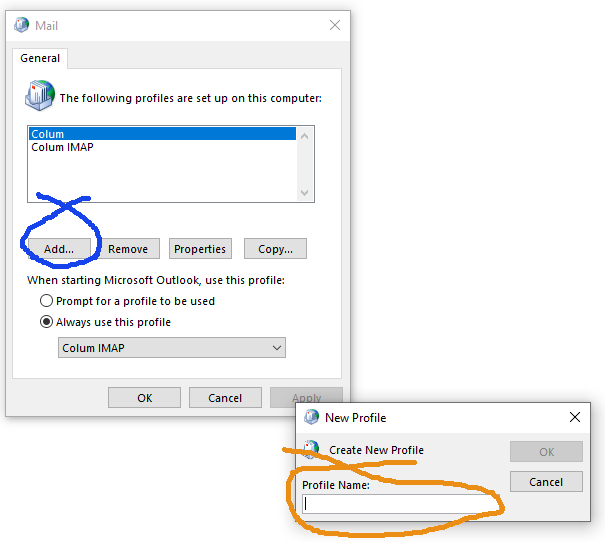
The name you choose is just for yourself and doesn’t affect any settings within your email. My personal suggestion would be to use your full email address here as this will make it easier to identify later.
After you click OK you should be presented with this screen;
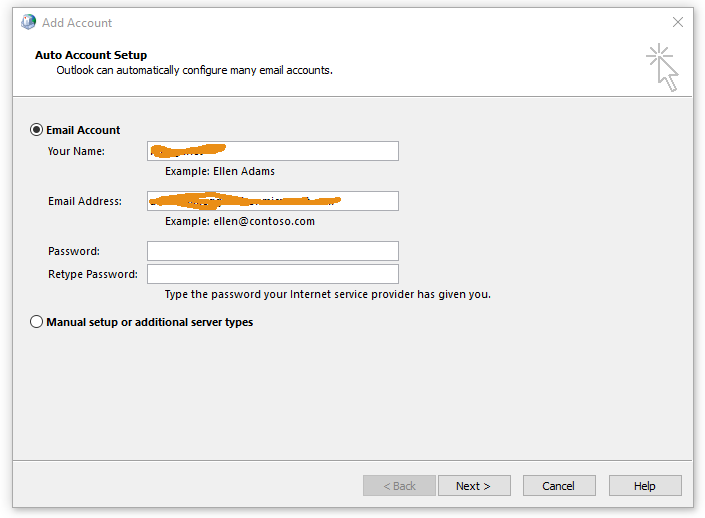
Ignore this and select Manual setup or additional server types and select Next >.
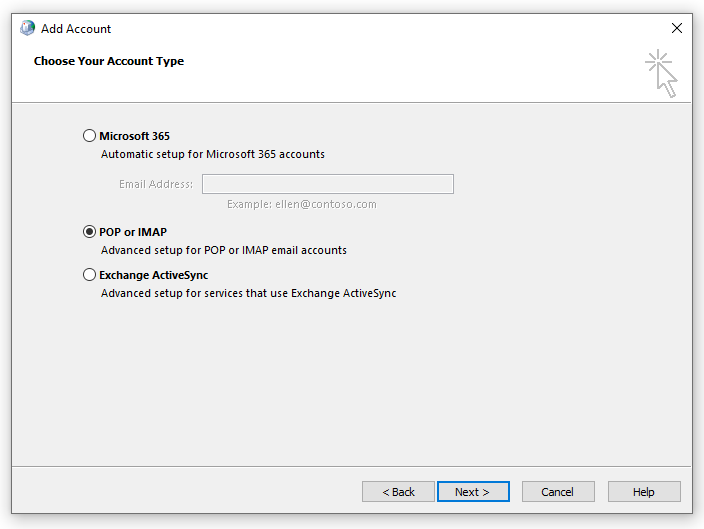
The account type we are after is IMAP so select POP or IMAP and select Next >
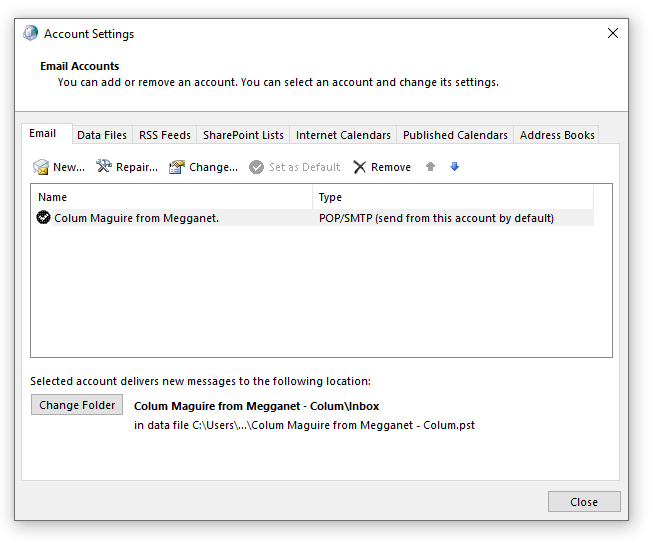
From the row of flaps, select New to set up your email address.
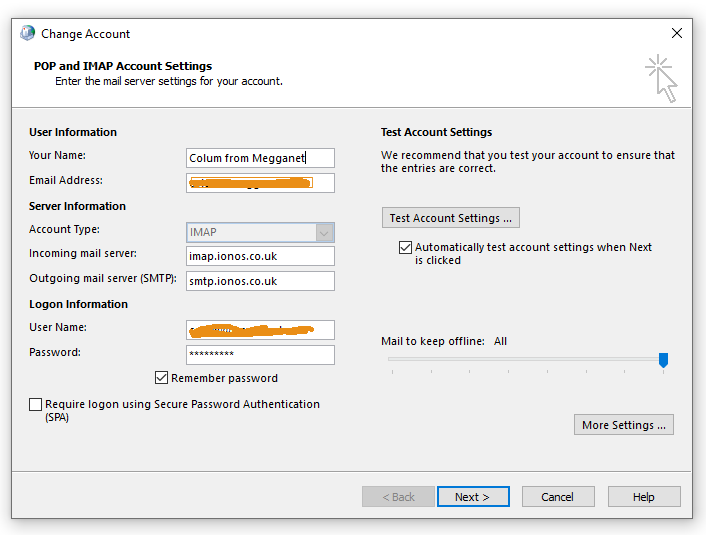
Here in the Change Account window, you can enter your email credentials.
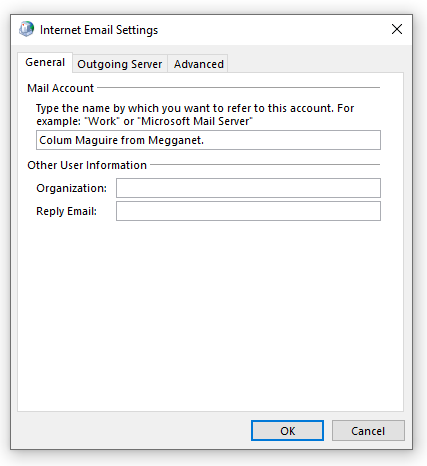
In the Internet Email Settings window, you can enter the senders details which can be seen on the recipients Outlook. In this case, they will see that the email comes from “Colum Maguire from Megganet”.
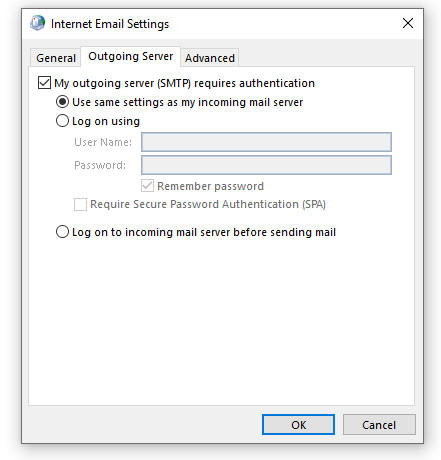
Tick the square tick box that says My outgoing server (SMTP) requires authentication. This provides some outgoing security.
Detailed settings
The following settings increase the level of security between your computer and the IONOS mail server.
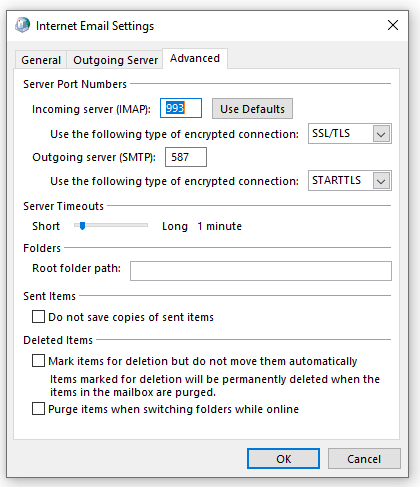
Click OK and exit. The test email button will verify whether or not you have entered all the settings correctly.
When tested and OK, go back to the profile page and set your default profile to the new one. This makes Outlook use your new profile instead of the old one.
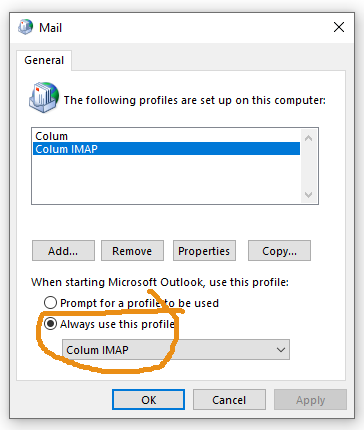
There is nothing to stop you from selecting Prompt for a profile to be used if you believe you may need to use the old profile for any reason.
Next, run Outlook and check your email is working as expected. If not, check your settings. If really stuck, get me to look at it by remote desktop.