FTTC (up to 80Mb), FTTP (up to 1GB), Leased lines, VoIP from £6/ month, Security software, Office 365, Email etc.
When you need value for money and quality of service without the drama phone 028 8283 1111
Select a quick link > Control panel - Rise a ticket - Remote assistance
TP-Link MR515
Introduction
The MR505 is a Wi-Fi 5 cellular router and the MR515 is a Wi-Fi 6 router. Both are LTE PLUS routers capable of up to 300 Mbps although in the real world, the speed doesn’t even come close. This web page is also relevant to the TP-Link MR505. Wi-Fi 6 offers better Wi-Fi range, features and speed than Wi-Fi 5.
Never reset a router. It may lose its settings and cease to work. If you need to restart the router, unplug it for 5 seconds, plug it back in again and wait about 5 minutes before trying to reconnect. Re programming a router which has been reset will incur a fee and if a call out is required, it will be at normal callout charges.
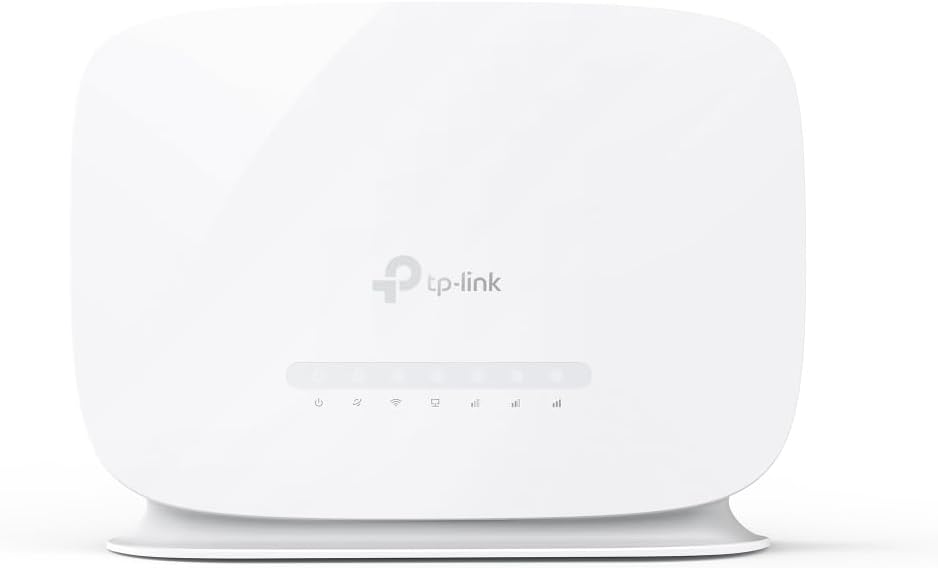
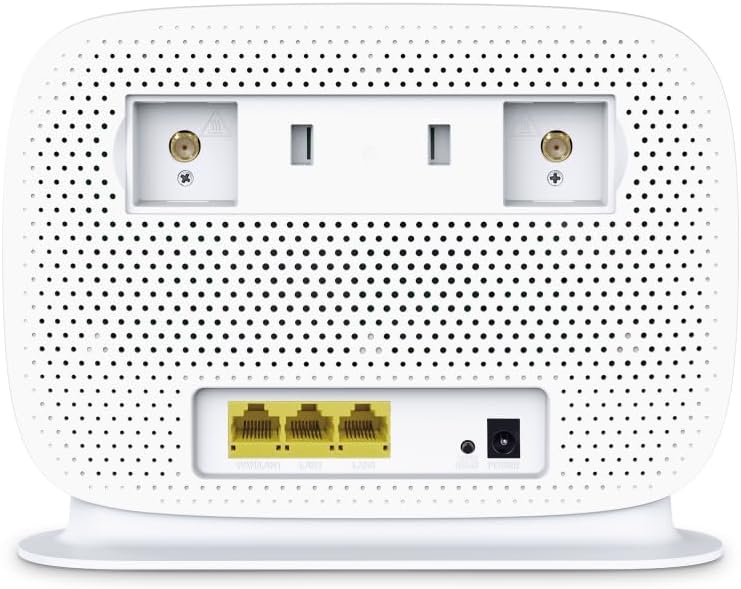
Location for the router
Place the router inside your premises close to a window – preferably on a windowsill. We have discovered that if a double glazed window has argon gas, it may severely cut down your signal strength. Sometimes a small external antenna may be used. These can have their cables routed through the window so no need to bore anything. We recommend mounting these about 10 CM or more out from the wall.
You may install the router in an attic and feed your devices from it with network cables. Also, nothing to stop you adding additional Wireless Access Points (WAP’s) for an EasyMesh network. A router in the attic may also have its wan antenna/directional antennas inside the attic for tidiness.
External antennas
If the router is to be used in a very weak signal strength area, an external antenna may be recommended.
These come in directional (need to be pointed at the mast) and omni directional which is usually mounted on top of the premises or on the side of the premises the mast is facing. Best use proper 4G cellular antennas form Poynting for a directional antenna. These can cost anything up to £200.
Logging into the router
Enter the default IP of the router (192.168.1.1 ) into your browser. Or you can enter http://tplinkmodem.net There is no username, just a password. This is unique to the router and can only be given out to qualified technicians.
Configure the Wi-Fi
Smart connect is enabled so the end user only sees a single SSID. The router decides whether the 5G or 2.5G is best. The 5G is fastest but the 2.5G can travel further than the 5G and it can penetrate walls and other objects better.
We normally just levee the SSID and Wi-Fi key at its default.
A Guest Wi-Fi is available.
External antennas
The back cover needs to be removed to reveal 2 x SMA connectors. When fitted, the router will need to be programmed to use them. Log into the router and enable ‘Advanced‘. Select ‘Network’ then ‘Internet‘ then flick the slider for ‘External Antennas‘.
As usual, we print the Wi-Fi key on the front of the router and our own unique serial number on the rear of it.
Speed
The internet speed provided by a Celular router depends on many things and can vary dramatically form one speed check to another. It can decrease to a point where video buffers and internet browsing may become groggy. If this happens, you can restart the router although this may have no real effect if the issue is external. Please do not call us to tell us that the speed is slow as we are unable do do anything about it except advise you to restart the router or other Wi-Fi equipment.
Upgrading the firmware manually
Enable ‘Advanced‘ mode and browse to ‘System‘ then ‘Firmware Upgrade‘. The MR515 can download and upgrade the firmware from here. After the upgrade and reboot sequence, check that the upgrade has actually worked. If it has, repeat the procedure to ensure there are no other firmware updates available.
WPS
The WPS button is on the back of the router. Only tap it for a split second. Never hold it in or it will reset your router.
EasyMesh
Yes, compatible easy mesh devices may be added. EasyMesh is enabled by default. Devices may be added by browsing to EasyMesh, scrolling down and select ‘Add EasyMesh Device‘.
IP Range – DHCP
The default IP Range is 192.168.1.100 to 192.168.1.200
Static WAN IP
By default, the WAN IP is dynamic. If Dynamic DNS is not an option, a cellular service may be ordered with a static IP. However, they are much more expensive.
Dynamic DNS
A Dynamic DNS service can go some way to not having a static IP.
This router has its own Dynamic DNS server which uses TP-Links as it’s service provider. Other service providers are available. This makes the router somewhat capable of being uses as a VPN router (incoming) or a router for a camera system.