FTTC (up to 80Mb), FTTP (up to 1GB), Leased lines, VoIP from £6/ month, Security software, Office 365, Email etc.
When you need value for money and quality of service without the drama phone 028 8283 1111
Select a quick link > Control panel - Rise a ticket - Remote assistance
Install Microsoft 365
Firstly, thank you for purchasing a Microsoft 365 from us. Before proceeding, you will need your credentials which are your username (usually the new email address associated with your account) and your password. We will send you your password by TXT.
There are several versions of Microsoft 365 including Microsoft 365 Standard and Microsoft 365 Premium etc, but the installation is the same for all of them. It’s the licence you purchased configures which version is used.
If this is your first time you have done this, please glance through the whole page. Note also that the installation sequence may change beyond our control but it should largely remain very similar to this.
Download Microsoft 365
Browse to https://m365.cloud.microsoft/apps
Log in with your credentials
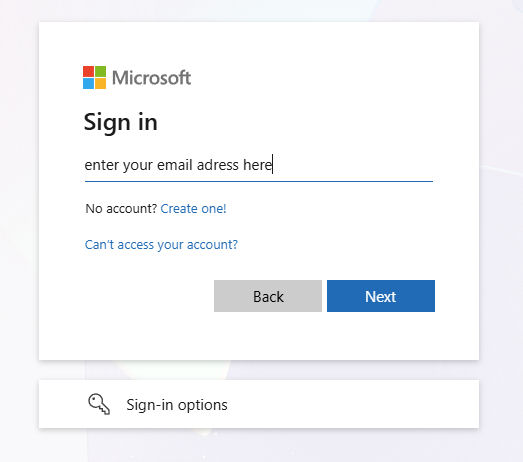
Select ‘Next‘ and then enter your password as below.
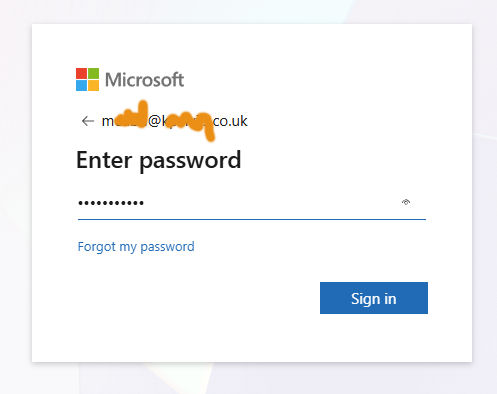
After entering your password, select ‘Sign in‘.
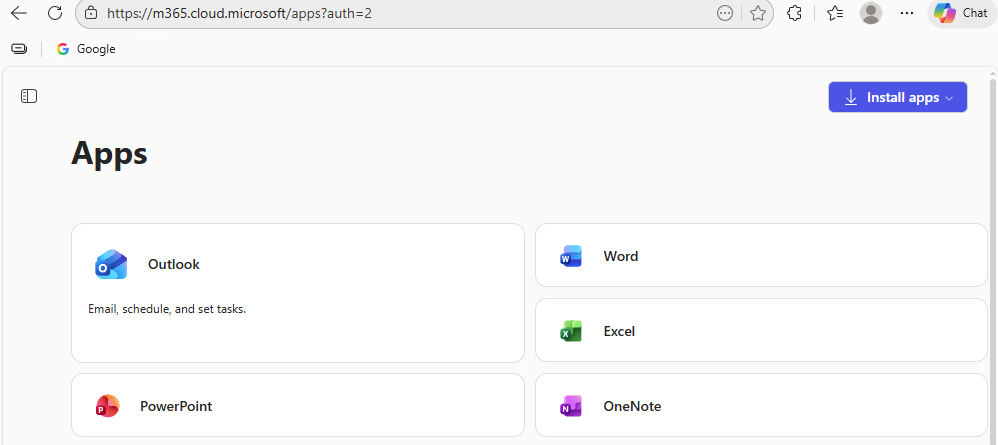
When you get logged in, select ‘Install apps‘.
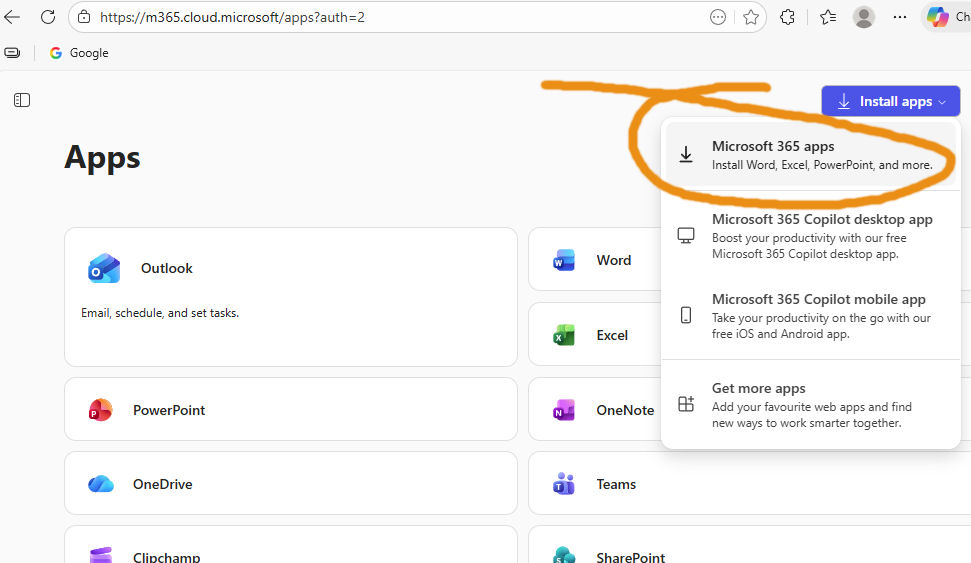
You may be taken to this page below.
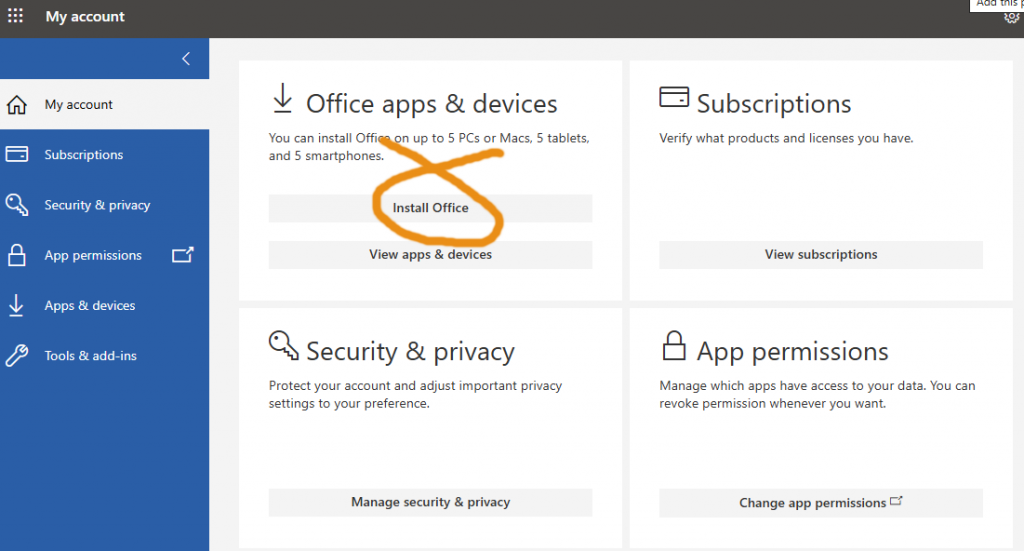
From here select ‘Install Office‘. A program called ‘Setup.exe‘ will be downloaded into your downloads folder. This is the installation program for your Microsoft 365 product. You can run it directly by clicking on it or you can browse to your downloads folder and run it from there.
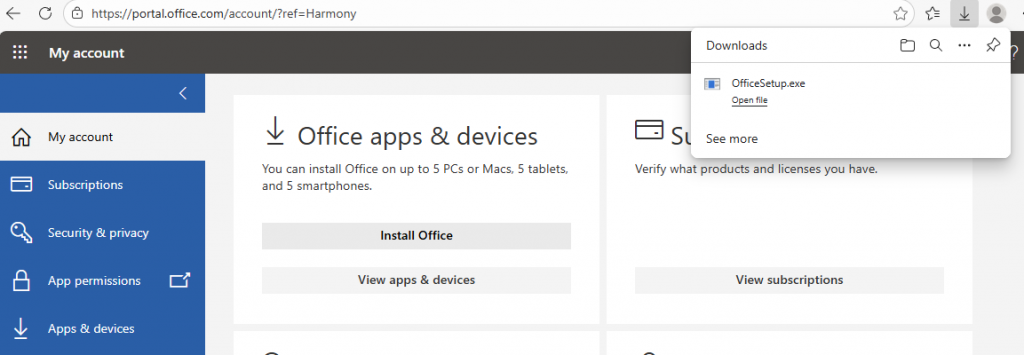
The installation procedure will now begin. It usually takes a few minutes depending on your internet speed.
Once Microsoft 365 is installed, the first program you should run is MS Word. You will need to enter your credentials again. First time you run word, you may be asked to accept a few things such as selecting the ‘Default File Type’ as below.
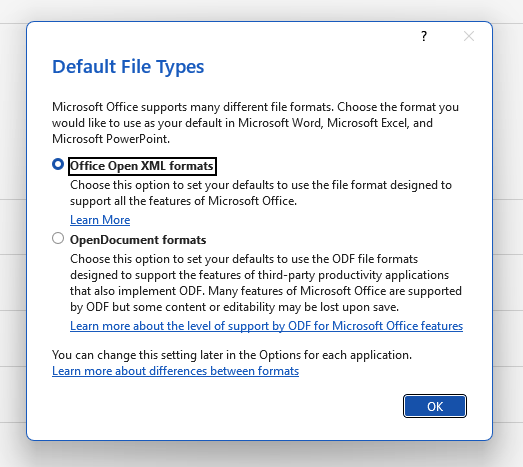
Select ‘Office Open XML formats’ as in the pic above and select ‘OK‘.
Once Word has been run and configured, you can exit Word.
At this point, you should run Outlook (Classic). TAKE CARE – there may be an other version of Outlook already on your computer. Outlook should automatically pick up your email address and email password from your Microsoft 365 login username and password.
You can check your email on any web enabled device by going to https://outlook.com Simply sign in with your email address and password.
The email service used is referred to as ‘Microsoft Hosted Exchange‘. There are several techniques used to read email on your mobile device and the techniques frequently change. Best thing to do would be to read through the relevant support pages before starting to configure your mobile device.
Setup your email on an android: https://megganet.com/knowledge-base/microsoft-exchange-using-default-android-app
In an iOS device you can use the iOS native mail app https://megganet.com/knowledge-base/ms-exchange-on-ios
or Outlook (You may need to download and install Outlook from the app store) https://megganet.com/knowledge-base/ms-exchange-on-ios-outlook
Remember this is an NCE product subject to Microsoft’s 12 month annual renewal.
If you have multiple installations, you can copy the ‘Setup.exe‘ to the other computers and run it separately.
Using the ‘Setup.exe‘ requires the computer to be online and be able to download the entire Microsoft 365 program. If you want, we can send you the procedure for downloading the full program so you can install it from (for example) a thumb drive or a network share. You only need to do the full download once. Click on ‘Raise a ticket‘ from the menu at the top of this page for this.
I would be grateful if you would report any errors or recommendations needed on this web page.